


How to Login to Your Server via SSH
Follow this guide to securely access your VM using SSH.
1. Download Your Private Key
Before you can log in, download the private key from your service panel.
- Log in to your Client Area.

- Navigate to your VM service.
- Click Download Private Key.
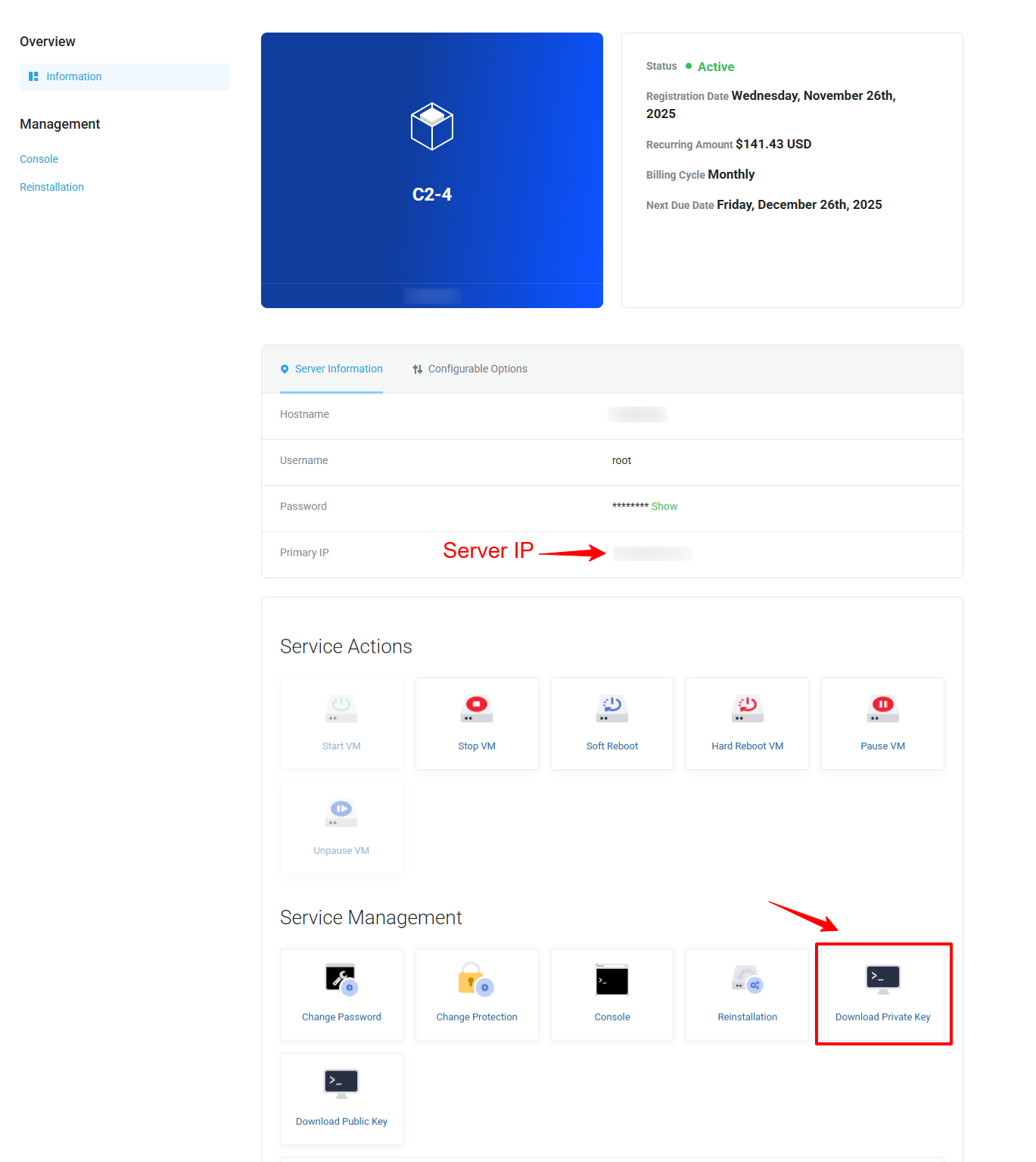
Save the file (e.g., xxxx_private.rsa) to a safe location on your computer.
2. Connect to Your Server via SSH
Once the key is downloaded, open your terminal (macOS/Linux) or use Windows PowerShell.
For Windows PowerShell, make folder c:\saved_rsa and save .rsa file there and when in power shell change directory to folder c:\saved_rsa that you save .rsa file
Use command
icacls your_private_key.rsa /remove "Users"
icacls your_private_key.rsa /remove "Everyone"
ssh -i your_private_key.rsa root@SERVER_IP
You will get suggested user name to login next time for example
Please login as the user "almalinux" rather than the user "root"
Next time use command
ssh -i your_private_key.rsa suggest_user@SERVER_IP
Replace:
your_private_key.rsa→ the key you downloadedUSER→ the username shown in the SSH instruction when use rootSERVER_IP→ your server’s primary IP
Example:
ssh -i 5769_private.rsa [email protected]
Tips
- Ensure your key file has proper permissions:
- For Windows (PuTTY users), convert the key to
.ppkusing PuTTYgen. - Never share your private key with anyone.
chmod 600 your_private_key.rsa


 WeChat: Krypt98Official
 QQ:
QQ: 
 +1-855-579-7888